
In my last blog post, I covered a new tool called jstall, which enables you to quickly check on a Java application. Because it was tiresome to always call the tool via java -jar jstall, I looked for a way to create executables directly from JARs, inspired by async-profiler’s build system. And I, of course, went down a rabbit hole. In this blog post, I’ll show you how use execjar to easily create your own executable JARs that you can execute directly on the command line while still being valid JARs.
TL;DR: execjar is a CLI and Maven plugin that enables you to create executables from JARs by just adding a few lines to your Maven file:
<plugin>
  <groupId>me.bechberger</groupId>
  <artifactId>execjar</artifactId>
  <version>0.1.1</version>
  <executions>
    <execution>
      <goals>
        <goal>execjar</goal>
      </goals>
    </execution>
  </executions>
</plugin>
When your project is called jstall, this creates an executable with the same name that you can execute directly via ./jstall.
Important: The resulting executable is compatible only with UNIX (Linux and macOS) environments.
However, before I delve into the in-depth configuration options of my new tool, I’d like to provide some background on its implementation.
Idea
Yes, we could use GraalVM’s native-image to create binaries from JARs, while this has some benefits like reduced startup runtime and runtime memory usage, it also has some problems:
- It creates platform-dependent binaries
- Platforms like PowerPC (which is essential for my SapMachine team) are not supported
- Building and shipping the binaries is cumbersome
- The binaries get fairly large and take time to build
- Native-image requires special configuration to support Java features like reflection
- … and might not support all features
- I had to use fallbacks for discovering the available JVMs on the system (fallback is jps) or getting a thread dump via a JMX connection (fallback is jstack)
So it’s not really suitable for small tools like jstall or async-profiler’s jfrconv. But what is the alternative? We can simply prepend a launcher script to the JAR file, which then executes the JAR file via a JVM found on the current machine (automatically located by searching a few predefined locations). So literally:
cat launcher.sh > jstall
cat jstall.jar >> jstall
# later (and omitting some flags)
java -jar jstall
But why does this work?
Background
It works because Java’s JARs are just ZIP files:
JAR file is a file format based on the popular ZIP file format and is used for aggregating many files into one. A JAR file is essentially a zip file that contains an optional META-INF directory. A JAR file can be created by the command-line jar tool, or by using the
JAR File Specificationjava.util.jarAPI in the Java platform. There is no restriction on the name of a JAR file, it can be any legal file name on a particular platform.
An ZIP files have an interesting property: Its central directory, which lists all the files with their relative offsets from the central directory, is placed at the end of the file:
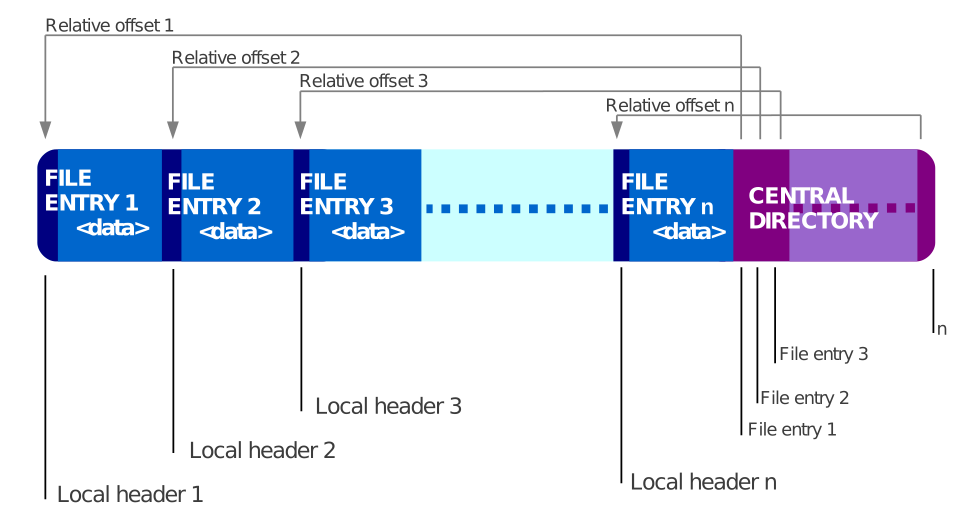
This is really good, because shell files are read from the beginning, allowing us to prepend a shell script simply:

While the ZIP specification doesn’t explicitly tell us, many ZIP implementations assume that a file starts with a local file header and its magic number 0x04034b50. The OpenJDK does the same (source):
if (JAR_CHECKING_ENABLED && !zipAccess.startsWithLocHeader(jar)){
    IOException x = new IOException("Invalid Jar file");
    // ...
}
But luckily, we can disable this by passing the sun.misc.URLClassPath.disableJarChecking property via the command-line argument -Dsun.misc.URLClassPath.disableJarChecking.
There is only one problem left: how do we call java -jar ... in a way that prevents the shell from trying to parse the JAR portion of the file? We use the shell-builtin exec command:
Many Unix shells also offer a builtin
WIKIPEDIAexeccommand that replaces the shell process with the specified program.[1][7] Wrapper scripts often use this command to run a program (either directly or through an interpreter or virtual machine) after setting environment variables or other configuration. By usingexec, the resources used by the shell program do not need to stay in use after the program is started.
Features of execjar
The interesting part of the execjar project is not the combining of a shell script and a JAR, but it’s the auto-generated shell script itself. The execjar tool generates a shell script that can
- finds the Java binary in various locations
- honors version constraints, allowing you to explicitly specify a minimal and maximum version of the Java binary. The shell script then attempts to find a suitable JVM on the system. Did you know that calling java -version takes more than 100ms? You can instead just read the release file that ships with any JRE.
- sets custom environment variables and system properties,
- prepends and appends custom arguments to the list of passed arguments
And, of course, it’s really easy to use.
Usage of the Maven Plugin
It is essential to note that the packaged JARs must include all dependencies to be executable. Therefore, you must use the Maven plugin in conjunction with other plugins that create a JAR with dependencies. There is a simple example-project in the execjar repository, whose pom.xml shows you exactly this:
<!-- Step 1: Create fat JAR with dependencies -->
<plugin>
    <artifactId>maven-assembly-plugin</artifactId>
    <version>3.6.0</version>
    <configuration>
        <descriptorRefs>
            <descriptorRef>jar-with-dependencies</descriptorRef>
        </descriptorRefs>
        <archive>
            <manifest>
                <mainClass>com.example.HelloExecJar</mainClass>
            </manifest>
        </archive>
    </configuration>
    <executions>
        <execution>
            <id>make-assembly</id>
            <phase>package</phase>
            <goals>
                <goal>single</goal>
            </goals>
        </execution>
    </executions>
</plugin>

<!-- Step 2: Create executable from fat JAR -->
<plugin>
    <groupId>me.bechberger</groupId>
    <artifactId>execjar</artifactId>
    <version>0.1.1</version>
    <!-- The executions block binds the plugin to the build lifecycle
         Without it, the plugin would never run automatically -->
    <executions>
        <execution>
            <goals>
                <goal>execjar</goal>
            </goals>
        </execution>
    </executions>
</plugin>
And voila, every mvn package also produces an executable. You can, of course, configure various settings, such as the minimum Java version (defaulting to the compile target version) and the JAR file to process. You can find all about these options in the README of the execjar project.
Usage of the Command Line Tool
There is also a command-line tool that you can directly download from the releases page:
# Using the script (recommended for Unix-like systems)
chmod +x execjar
./execjar myapp.jar

# Using the JAR directly
java -jar execjar.jar myapp.jar -o myapp
This tool supports the same options as the Maven plugin, just call ./execjar --help to get a list of them.
Now on to some benchmarks.
Benchmark Comparison with Native-Image
In the following benchmarks, I’m using the jstall project as an example, as it is precisely the target use case for execjar: It’s a small CLI tool that solves one specific use case.
To make it more interesting, I compare the bruntimed runtime performance with native-image, the natural competitor. As you’ll see shortly, the performance difference is not as big as expected. However, I want to mention one caveat: I’m not an expert with native-image, and the numbers I obtain should in no way be generalised.
Setup
I’m using hyperfine to run multiple executions on my MacBook Pro M5. The original jstall JAR with all dependencies is 4.7MB in size. We’re using GraalVM 25 CE for both native-image and as a base JVM, to simplify running benchmarks, but this should be comparable to using OpenJDK.
The jstall JAR depends on the picocli library for command-line argument parsing and transitively depends on Jackson (via jthreaddump). Hence, the JAR includes a lot of code, despite being a rather small application.
Maybe I could remove the Jackson dependency of jthreaddump, or make it optional, but that’s for another day.
Build-Time Performance
I start by comparing the build-time, but exclude the overhead of Maven and only compare the call to native-image with the equivalent execjar call:
> hyperfine "... native-image ..." "... execjar ..." --warmup 1
Benchmark 1: native-image
  Time (mean ± σ):     22.183 s ±  1.238 s    [User: 150.302 s, System: 6.544 s]
  Range (min … max):   20.834 s … 24.466 s    10 runs

Benchmark 2: execjar
  Time (mean ± σ):     220.7 ms ±  62.5 ms    [User: 389.2 ms, System: 62.4 ms]
  Range (min … max):   175.5 ms … 416.9 ms    15 runs


Summary
  execjar ran
  100.51 ± 29.01 times than native-image
This is expected, as execjar doesn’t do that much and mainly uses handlebars.java to create the launcher shell script, verifying that the passed JAR has a main class and creating the final executable. Just calling execjar --help takes around 102ms.
The size difference between the generated binaries is significant: while the execjar-built executable has roughly the same size as the original JAR (4.8 MB), the native-image-built executable is 6.5 times larger, at around 31 MB.
Now to the runtime performance:
Basic RuntIME Performance
Running jstall without arguments lists the supported commands and VMs on the system; this is as simple as a jstall command can be. Let’s see how both executables compare:
> hyperfine "./nativejstall" "./execjstall" --warmup 5
Benchmark 1: ./nativejstall
  Time (mean ± σ):      66.6 ms ±   1.5 ms    [User: 97.0 ms, System: 29.6 ms]
  Range (min … max):    63.9 ms …  70.8 ms    42 runs

Benchmark 2: ./execjstall
  Time (mean ± σ):     143.1 ms ±   2.1 ms    [User: 253.1 ms, System: 41.3 ms]
  Range (min … max):   140.8 ms … 148.5 ms    20 runs

Summary
  ./nativejstall ran
    2.15 ± 0.06 times faster than ./execjstall
As expected, the native-image-built executable runs far faster. But this is not the case for the first run (which is why we use hyperfine with --warmup 5), then it’s around 240ms (the execjar-built executable is faster with around 200ms), probably reflecting the larger file size of the former.
Is this relevant? For the CLI user, it’s probably noticeable, but 140ms is still fast for users (the reaction time of humans is higher).
JStall DeadLock performance
A typical use case with jstall is to check whether an application is currently in a deadlock, like the deadlock example from last week’s blog post:
./jstall deadlock Dead
Using the newly introduced application filtering feature that allows the user to identify JVMs by a part of their label.
Here we can see that there is not really a noticeable difference between the execjar-built executable and the native-image one:
hyperfine "./nativejstall deadlock Dead" "./execjstall deadlock Dead" -i
Benchmark 1: ./nativejstall deadlock Dead
  Time (mean ± σ):     128.1 ms ±   4.2 ms    [User: 195.6 ms, System: 57.6 ms]
  Range (min … max):   123.2 ms … 138.7 ms    21 runs

Benchmark 2: ./execjstall deadlock Dead
  Time (mean ± σ):     253.9 ms ±   2.1 ms    [User: 455.2 ms, System: 79.2 ms]
  Range (min … max):   251.4 ms … 258.5 ms    11 runs

Summary
  ./nativejstall deadlock Dead ran
    1.98 ± 0.07 times faster than ./execjstall deadlock Dead
The most used command of jstall is the status command, where it looks different:
JStall Status performance
This is because this command takes two thread dumps with a 5-second sleep between:
> hyperfine "./nativejstall status Dead" "./execjstall status Dead" -i
Benchmark 1: ./nativejstall status Dead
  Time (mean ± σ):      5.220 s ±  0.009 s    [User: 0.319 s, System: 0.097 s]
  Range (min … max):    5.210 s …  5.241 s    10 runs

Benchmark 2: ./execjstall status Dead
  Time (mean ± σ):      5.366 s ±  0.006 s    [User: 0.671 s, System: 0.126 s]
  Range (min … max):    5.355 s …  5.374 s    10 runs

Summary
  ./nativejstall status Dead ran
    1.03 ± 0.00 times faster than ./execjstall status Dead
So what do these benchmarks tell us? Native-image creates faster binaries, but for small CLI tools like jstall, the difference is probably negligible.
Conclusion
The execjar project provides a small tool that enables us to exploit an interesting quirk of JARs to create executable files for Java tools. This helps us to make tools like jstall more usable, allowing us to place them directly in PATH. It’s part of my goal to build a suite of small tools that solve specific problems, improving my day-to-day developer experience.
I hope you find execjar useful. See you in the next week or two for another blog post.
This article is part of my work in the SapMachine team at SAP, making profiling and debugging easier for everyone.
P.S.: Happy New Year…